A First Look at AI Features on a New Device
A first look at AI features on a new device helps you set up useful controls, choose what to keep, and spot features that add clutter or confusion.
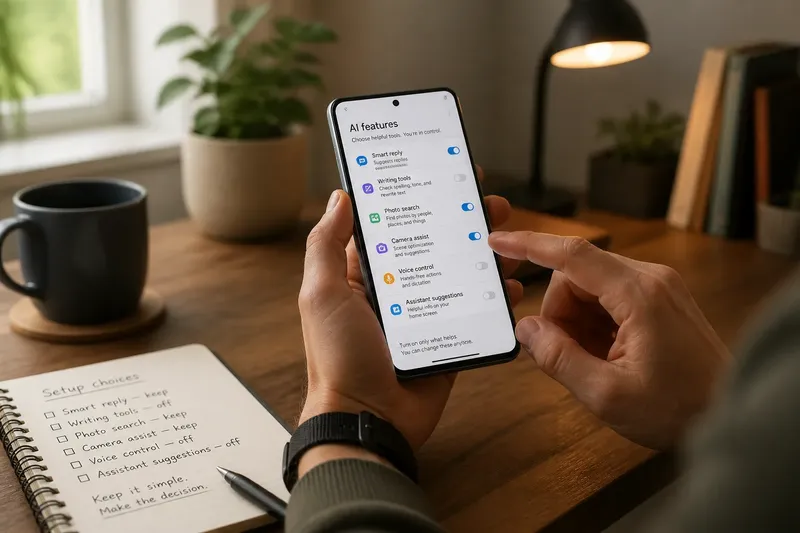
The most common mistake with AI features on a new device is turning on every prompt before deciding which ones fit your routine. That can clutter menus, change how familiar apps behave, and make it harder to notice which tools you actually use. A first look at AI features on a new device works better as a small setup edit: keep what solves a real annoyance and quiet the rest.
Start with the places where suggestions appear—your keyboard, camera, photos, voice controls, or notification screen. Treat each as a separate choice. The device’s “AI” label may cover tools with very different effects on your daily habits.
Choose one everyday annoyance to solve
Before opening settings, name a task that regularly slows you down. Maybe you rewrite the same kind of message, struggle to find a photo, or want a spoken reminder while your hands are busy. A specific job makes it easier to judge a feature than a broad promise about being more productive.
Open the relevant app and locate the feature’s description. For a keyboard tool, that may be in the keyboard’s settings; for photo search, check the Photos app. Note the exact feature name and what it claims to change. “Suggest a reply” is not the same as sending one, and “remove an object” is not the same as preserving every detail in an edited image.
Decide which prompts deserve a place on screen
AI suggestions can be helpful, but repeated prompts can also interrupt a familiar task. Check whether you can turn off a suggestion without disabling the whole app. Look for controls such as “show suggestions,” “writing tools,” or “assistant shortcuts,” and change only the setting tied to the feature you want to quiet.
- If a keyboard suggestion appears while you type and helps with a task you do often, keep it enabled; if it distracts you or changes your wording, turn off that suggestion and continue typing normally.
- If a camera mode is easy to find and suits the photos you take, leave its shortcut visible; if it crowds out a mode you use more, hide or rearrange the shortcut instead.
- If an assistant notification arrives at a useful moment and offers a relevant action, keep that notification; if it interrupts unrelated tasks, disable that notification category and use the assistant only when you open it.
- If photo search finds the kinds of images you need, keep its search option available; if its labels confuse you, use albums or ordinary keyword search instead.
- If a writing tool offers a draft you can review before using, keep it handy for low-stakes messages; if it makes editing slower, remove its shortcut and write in your usual way.
- If a voice control responds in the places you expect, keep its access enabled; if it activates at awkward times, adjust its trigger or turn it off and use a manual control.
Make a small setup change and watch what follows
Change one setting at a time. That way, if an app behaves differently, you know which control to revisit. Take a moment to confirm the result in the same place where the prompt or shortcut used to appear.
Say you use an invented phone setup where the keyboard keeps offering rewrites while you type quick messages. You open the keyboard settings, turn off only the rewrite prompt, and send a routine message using your usual wording. The expected visible result is that the prompt no longer appears while ordinary typing remains available. If the setting also removes a tool you wanted, restore it and look for a narrower control.
Keep private or consequential tasks in your hands
For personal messages, work documents, appointments, or decisions that matter, pause before accepting a suggested reply or summary. Read the original, check names and details, and make the final choice yourself. If you are unsure what information a feature uses, look for its privacy explanation before entering sensitive material.
For health, financial, legal, or safety decisions, use AI output as a prompt for questions rather than as authority. Check with a qualified professional when the consequences matter. A feature can be convenient without being the right place to make the decision.
How should you decide what to keep?
Should I turn on every AI feature during setup?
No. Start with one feature tied to a task you already do, then decide whether its effect is useful. Leaving unrelated controls off keeps your setup easier to understand.
How can I undo a change I do not like?
Return to the app or system setting you changed and restore its previous option. If you cannot remember the control, search Settings for the feature’s exact name or check the app’s help page.
What if a feature changes after an update?
Check the current description and controls rather than relying on an old note or memory. Updates can move a shortcut or alter the way a feature is presented.
How do I know whether an AI suggestion is safe to use?
Review it against the source and correct anything that matters before acting or sharing it. For high-stakes choices, seek qualified advice instead of relying on the suggestion.
Keep a short note about the setup you chose
Record the feature name, the setting you changed, and the reason you kept or disabled it. A brief note in your phone’s Notes app can save time if an update moves the control or you want to restore your old setup.
Revisit the note when your routine changes. The most useful first look at AI features on a new device does not mean adopting every tool; it means knowing which small change helps, where to reverse it, and when to make the decision yourself.